- Blog/
- Top 5 proxy applications for iOS
Top 5 proxy applications for iOS
- February 07, 2024
- 994 views
The advancement of digital technologies has made proxies, which serve as virtual intermediary servers, essential for safe internet browsing, personal data protection, and circumventing local or regional restrictions. Users of Apple devices, too, require reliable and user-friendly applications for working with these intermediary servers.
Knowing how to properly configure a proxy application on iOS is vital for effective use. With the correct setup of the protocol, server, port, and necessary security certificate, as well as choosing the right proxy, users can maximize the benefits of an intermediary server:
- Bypass restrictions. Proxies can circumvent access restrictions imposed by internet service providers or web services, particularly in cases of local or regional blocking. This enables access to desired content from anywhere in the world.
- Enhance productivity. An HTTP proxy for iOS, like other data transfer protocols, can significantly reduce response times and speed up the loading of web pages and content through data caching.
- Control access. Proxies offer the ability to block unwanted or harmful content, filter and restrict access to specific site categories, or limit connections to only certain resources. This feature is particularly useful for parental controls or corporate network use.
Paid proxies are often the preferred choice for Apple device owners who prioritize reliability, security, and quality of internet connection. While free proxies might appeal to budget-conscious users, they typically do not offer the same level of service, privacy, and stability as their paid counterparts.
The specific settings for a proxy program depend on the device and operating system version but generally include:
- server address;
- port number;
- protocol type - HTTP(S) or Socks5;
- authentication details - username and password;
- geographic location of the server (to determine the country's IP address used when routing requests), along with other user-specific requirements.
Popular proxy apps for iOS include Shadowrocket, V2Ray, OneConnect. Each offers a stable connection and ensures the confidentiality of personal information. However, correct configuration of the proxy is essential for utilizing these virtual assistants effectively.
Shadowrocket

Shadowrocket is a versatile application designed to cater to iOS, Android, and PC users, offering a suite of unique functions aimed at establishing and configuring secure internet connections on these devices.
For iOS users, Shadowrocket comes packed with features and capabilities to enhance online security and privacy. One of its notable functions is the built-in ad blocking feature, which not only eliminates annoying banners but also enhances page loading speeds. Additionally, the app provides robust protection against access to undesirable websites and includes content filtering features to shield users from potentially harmful material.
Shadowrocket supports a variety of proxy protocols on iOS, including Socks5, HTTP(S), and Shadowsocks. This range of options allows users to select the protocol that best suits their specific needs, ensuring a more personalized and secure online experience.
Step-by-step proxy setup in Shadowrocket
Setting up Shadowrocket is a straightforward process. Just follow these steps to configure it on your iPhone or iPad:
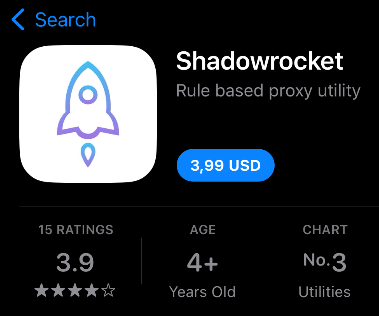
- Begin by downloading Shadowrocket from the App Store. Install it on your device, and then open the application.
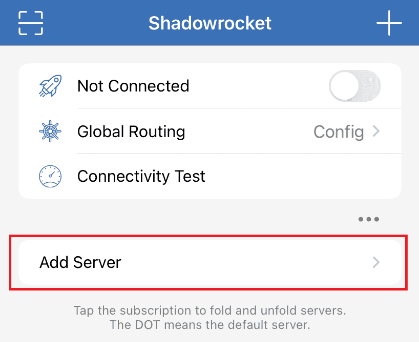
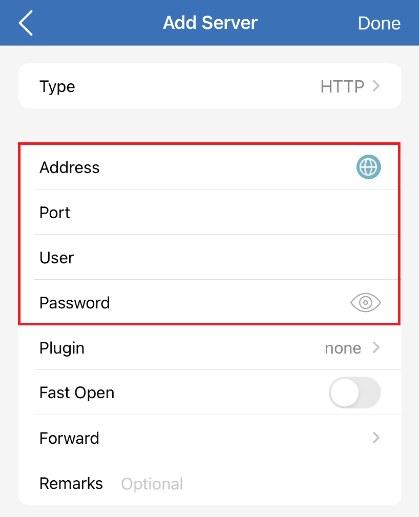
- On the main screen of Shadowrocket, tap on “Add Server”.
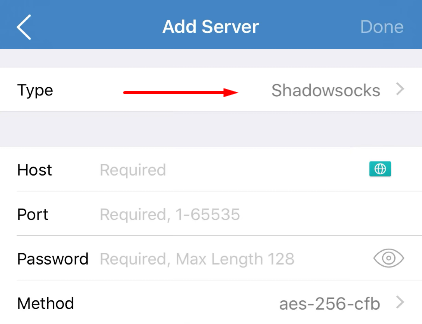
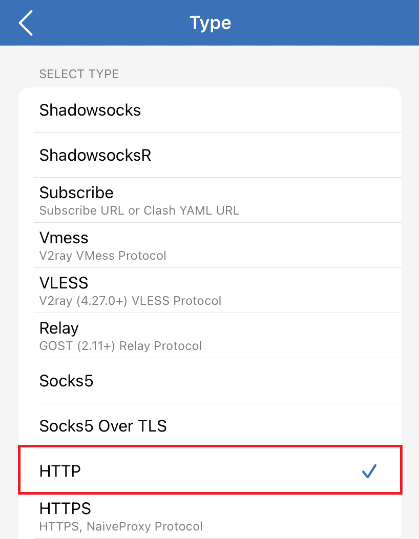
- You'll need to input your proxy server details. Select the “Type” of the proxy protocol you're using, such as “Socks5” or “HTTP”.
- Enter the “Address” and “Port” of your proxy server. If your proxy requires a username and password for authentication, enter these as well. Once all details are filled in, tap on "Done" located in the upper right corner of the display to save your settings.
- Return to the main application screen. Here, you should see the new proxy configuration you've added. To activate the proxy connection, click the switch at the top right of the screen.
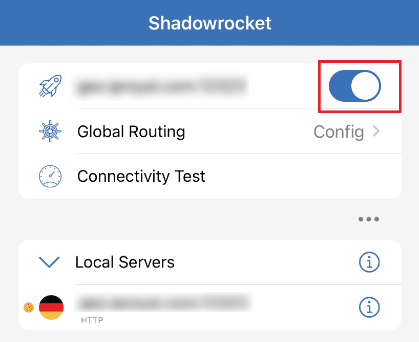
With these steps completed, your proxy is now configured and active in ShadowRocket. This setup allows any applications on your device to connect via the configured intermediary server, enhancing your online privacy and security.
V2Ray
V2Ray for iOS is a robust tool designed to ensure secure and private internet access. Its standout feature is the capability to disguise network traffic, enabling users to circumvent blocks. The app leverages protocols like Shadowsocks, VMess, and Trojan to safeguard data and provide encryption.
V2R boasts an array of features and customizable settings, making it highly adaptable. It allows for easy switching between different proxy servers and offers the ability to tweak various options, including incoming and outgoing ports, encryption types, and traffic routing. Moreover, the app supports load balancing, distributing traffic across multiple servers to enhance performance and connection stability.
Proxy configuration in V2Ray
Configuring V2Ray involves a series of steps. For the program to function stably, it's crucial to follow these steps in order:
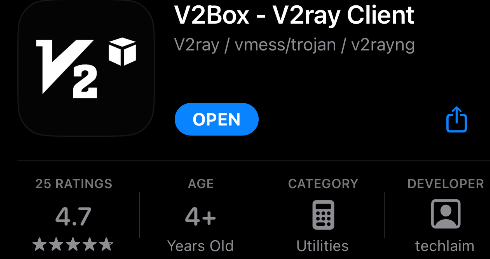
- Download the V2Box app from the App Store.
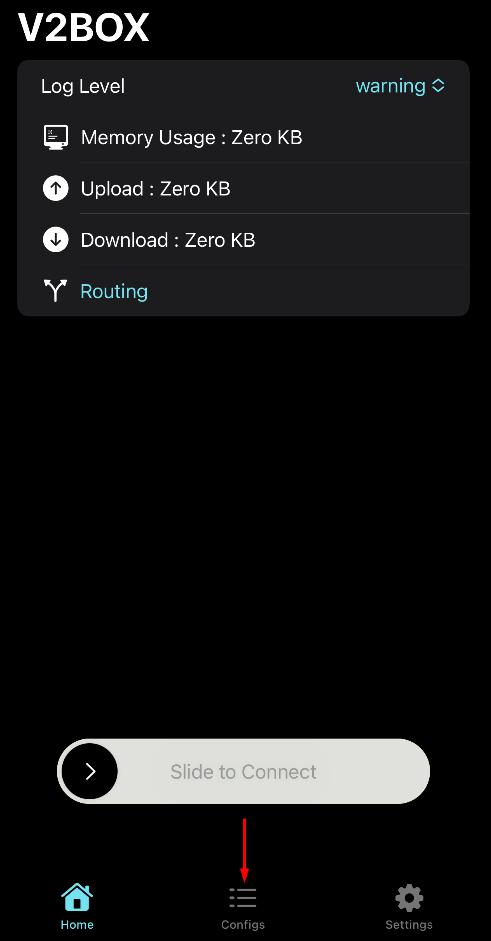
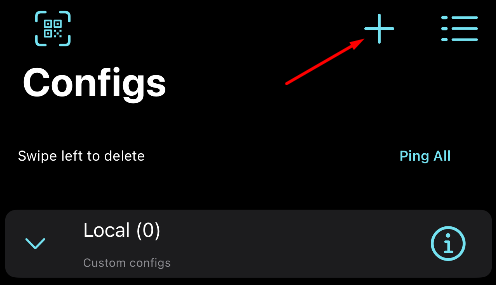
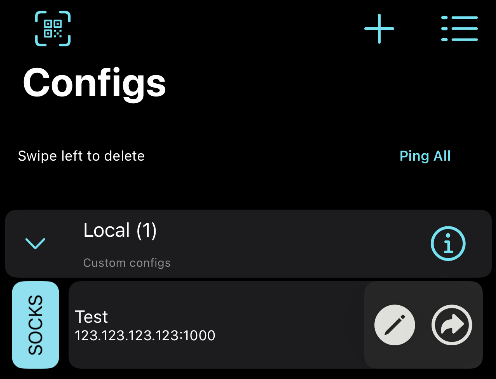
- Open the app and navigate to the “Configs” section on the main page.
- Tap the plus sign button to add a new configuration.
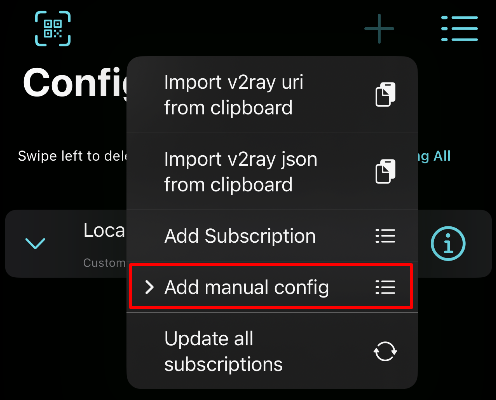
- In the menu that appears, select “Add manual config”.
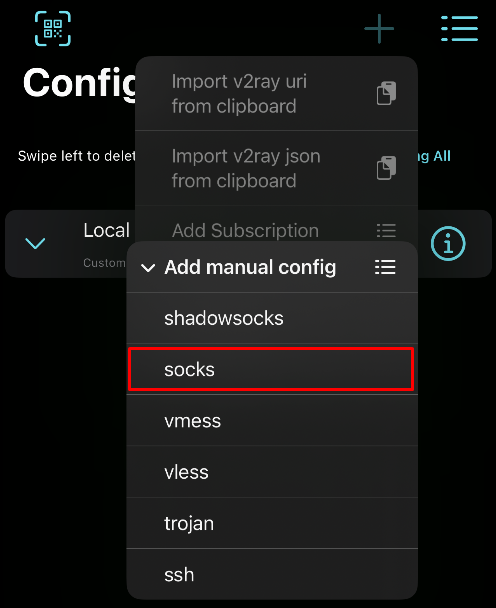
- Choose the protocol type you'll be using, such as SOCKS.
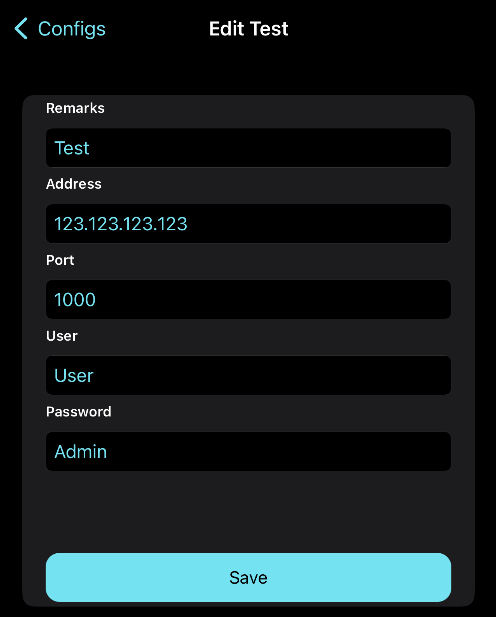
- Upon selecting the protocol, you'll be taken to the proxy connection settings page. Enter a name for your configuration in the “Remarks” field. Then, fill in the proxy server details in the “Address” and “Port” fields, and add authorization information in the “User” and “Password” fields. Save these details using the “Save” button.
- Your new config will now be listed on the configuration list page.
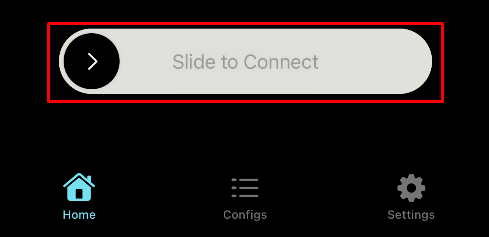
- To activate it, return to the main page and swipe the slider to the right.
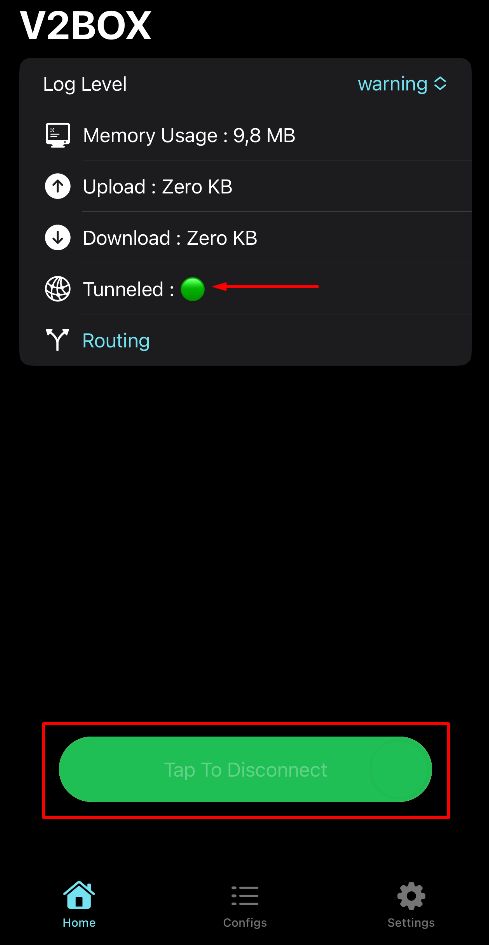
- A green indicator will light up if everything is set up correctly. To disconnect, tap the green button at the bottom of the screen labeled “Tap To Disconnect”.
To verify the proxy's functionality, open your browser and access a website previously inaccessible in your region.
You have now successfully configured V2Ray on your iOS device, enabling you to use applications that require an intermediary server for internet requests.
OneConnect
The OneConnect app is a dynamic tool designed for setting up a proxy on Apple devices. It enables users to conceal their actual IP address, circumvent blocks, surf the web anonymously, and transfer data securely via an encrypted connection.
OneConnect provides a choice of protocols, including Socks5, HTTP, and HTTPS, allowing users to select the most appropriate one for their specific needs. Additionally, it allows the configuration of a virtual intermediary for use over Wi-Fi networks.
Setting up a proxy in the OneConnect application
To set up an application proxy on iOS using OneConnect, follow these steps:
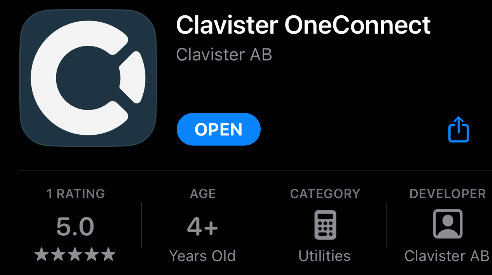
- Search for and download the OneConnect app from the App Store. Open the app once installed.
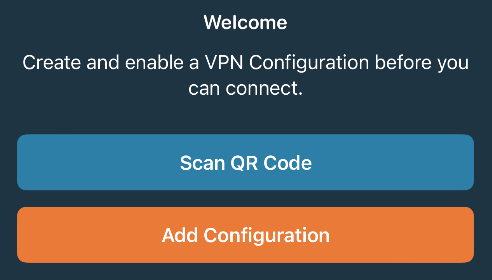
- In the main menu, tap on “Add configuration”.
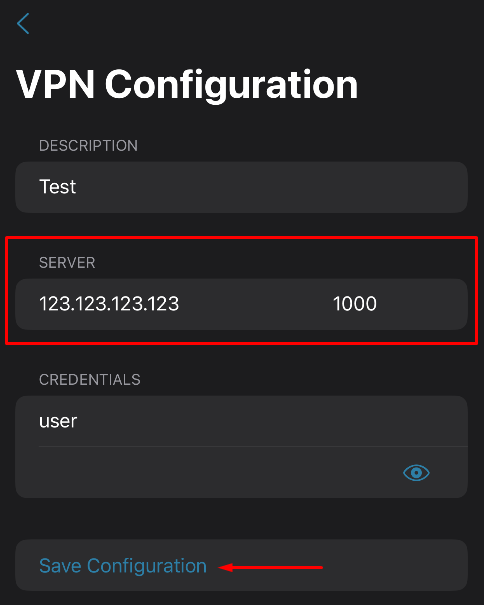
- Enter the “Server” and “Port” information provided by your proxy provider. If authentication is required, also input your username and password. Then, tap the “Save Configuration” button to apply these settings.
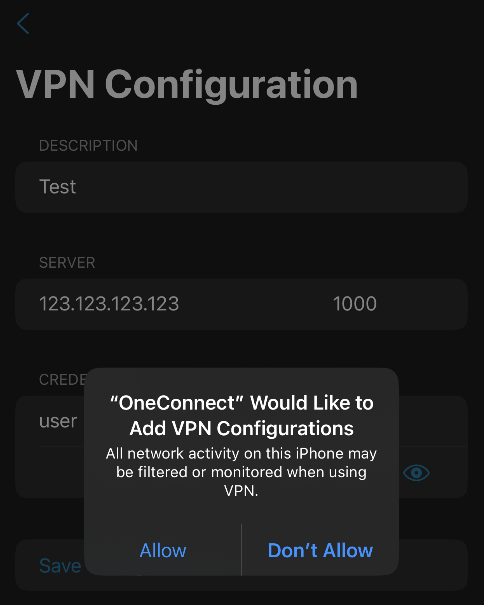
- The app will request permission to connect. Grant access by tapping on the “Allow” button.
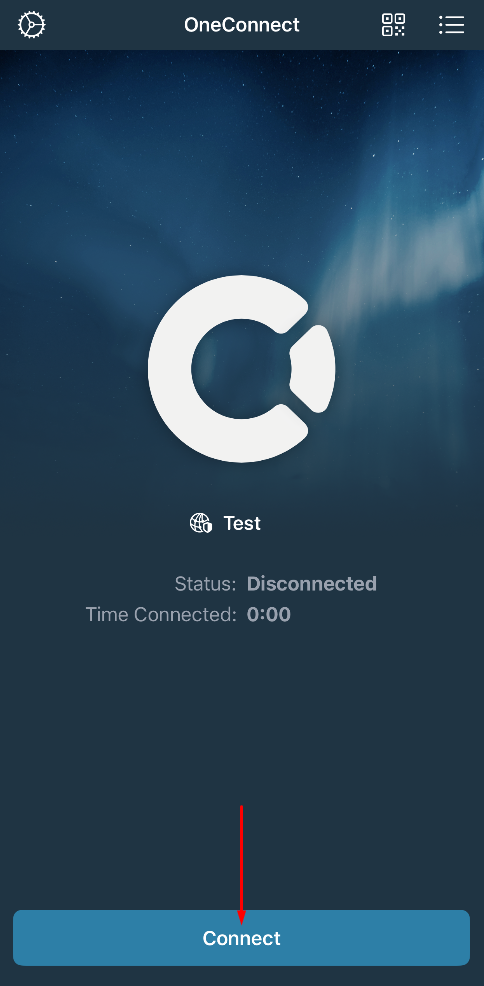
- To activate the proxy, press “Connect” at the bottom of the main screen. To turn off the proxy, click the same button again.
The procedure may vary slightly based on the specific version of OneConnect. If you encounter any issues while setting up the proxy, consider reaching out to the app's support team or your proxy server provider for more detailed guidance and assistance.
Proxy application for iOS: what to choose
Each of these popular iOS proxy apps—Shadowrocket, V2Ray, OneConnect - offers unique features catering to different user needs:
- Shadowrocket. Ideal for regular users seeking a quick and easy secure connection. Configuration is straightforward, involving the addition of a profile with necessary server parameters.
- V2Ray. Known for its broad functionality, V2Ray supports basic proxy protocols like HTTP and Socks5, as well as advanced options such as VMess and Shadowsocks. This makes it a valuable tool for developers or experienced users.
- OneConnect: Offers a quick and simple proxy server setup without requiring additional parameter adjustments, making it an ideal choice for users who prefer ease of use.
In summary, Shadowrocket and OneConnect are recommended for those who want a hassle-free proxy setup. V2Ray is a better choice for developers or advanced users seeking more comprehensive intermediary server setup options.
Related reading
- January 06, 2026
Informational
5 Best Proxy for Chrome for Secure and Easy Browsing
This guide covers the best proxy for Chrome solutions available in 2026, from browser extensions to full-scale services. - December 19, 2025
Informational
How to Check and Maintain Proxy Server Security
This guide explains secure proxy server features, how a secure web proxy differs from a regular one, how to test it in practice, and which settings help maintain long-term protection. - December 03, 2025
Informational
Best Proxy for Gaming 2026 – Top Providers, Pricing & Reviews
The best proxy for gaming helps reduce ping, smooth out connection spikes, protect traffic, and provide access to game servers with the right location and network parameters.